
Rebasing
While the example in Cherry-picking worked, it's not practical. In Git, rebasing allows us to replace our verbose cherry-pick workflow...
$ git switch main$ git switch -c foo-tmp$ git cherry-pick C D$ git switch foo$ git reset --hard foo-tmp$ git branch -D foo-tmp
...with a single command.
$ git rebase main foo
With the format git rebase <base> <target>, the rebase command will take all of the commits from <target> that aren't already in <base>, and play them on top of <base> one by one. It does this without actually modifying <base>, so the end result is a linear history in which <base> can be fast-forwarded to <target>. If you leave out <target>, Git rebases the current branch.
In a sense, performing a rebase is like telling Git, "Hey, I want to pretend that <target> was actually branched from <base>. Take all of the commits from <target>, and pretend that they happened after <base>".
Let's watch it happen with the same kind of history we had in the previous chapter.
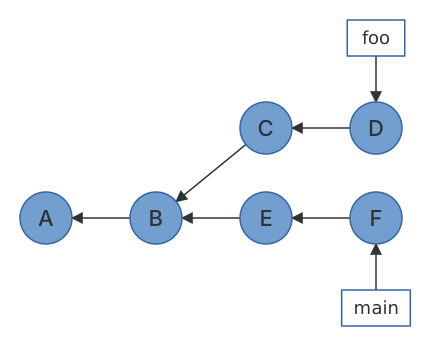
$ git log --oneline --graph --all* 5279122 F* db4662c E| * d9ec597 D| * 77c827c C|/* 39fb407 B* cecaa5e A$ git rebase main fooSuccessfully rebased and updated refs/heads/foo.$ git log --oneline --graph --all* 3b2d27e D* 9910860 C* 5279122 F* db4662c E* 39fb407 B* cecaa5e A
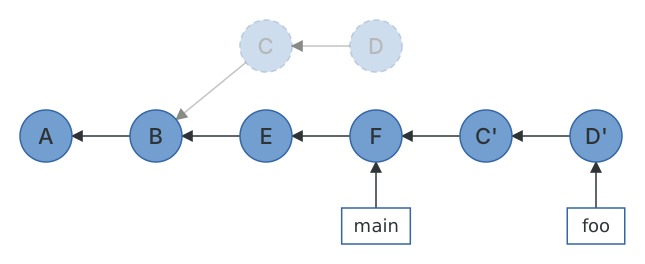
This is exactly the result we produced by hand: C and D have been copied to new commits (9910860 and 3b2d27e) on top of F, foo has been moved to point at the new D, and the original C and D are no longer reachable. Git is now able to perform a fast-forward merge.
$ git switch mainSwitched to branch 'main'$ git merge fooUpdating 5279122..3b2d27eFast-forwardC.txt | 1 +D.txt | 1 +2 files changed, 2 insertions(+)create mode 100644 C.txtcreate mode 100644 D.txt
If you'd been following along with the first edition of this guide, you'd have noticed that the output has changed. Old versions of Git said "First, rewinding head to replay your work on top of it..." and then applied each commit as a patch. Since Git 2.26 the default rebase backend is the merge backend, which cherry-picks each commit with a three-way merge, exactly as described in the last chapter. The practical differences are that rebases are better at detecting renames, conflicts look the same as merge conflicts (and respect zdiff3), and rebasing is no longer any more mysterious than cherry-picking.
Why rebasing is "dangerous"
Now we can address the scaremongering. A rebase replaces commits with copies. If nobody else has the original commits, this is a non-event: you have new commits, the old ones fade away, and the history is tidier for it. If somebody does have the originals (because you pushed them, and they pulled them), then their history contains commits that yours no longer does, and the next time you try to reconcile the two branches Git will do its best to merge your C' with their C, and it will be a mess.
That's the whole danger, and it leads to the only rule you need: don't rebase commits that other people have based work on. Your own unpushed feature branch is fair game. main, or a branch your colleague is also working on, is not. If you do rebase a branch you've already pushed, you'll need git push --force-with-lease to update the remote (see Pushing), and everyone who has that branch will need to reset to it.
In practice, most teams rebase feature branches freely and never rebase shared branches, and this works fine.
Rebasing onto something else
git rebase <base> moves commits that aren't in <base> on top of <base>. Sometimes that isn't precise enough. Suppose bar was branched from main, and baz was branched from bar, and you want to move only baz's commits onto main, leaving bar where it is.
$ git log --oneline --graph --all* 036bb1c J* f2ebad3 I* 9643a9c H* 2b4d58e G| * 3b2d27e D| * 9910860 C|/* 5279122 F* db4662c E* 39fb407 B* cecaa5e A
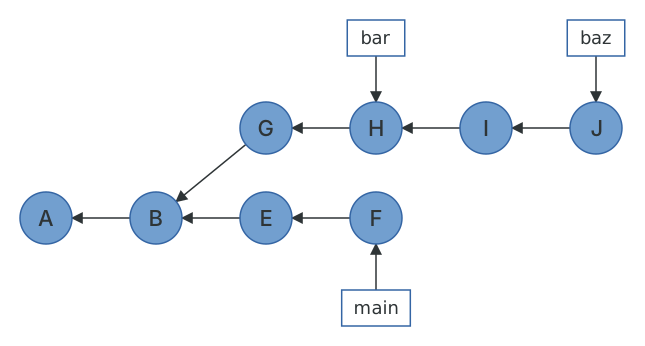
git rebase main baz would copy G, H, I and J, since none of them are in main. The --onto flag lets you separate "which commits to move" from "where to put them": git rebase --onto <newbase> <upstream> <branch> moves the commits in <branch> that aren't in <upstream>, and puts them on top of <newbase>.
$ git rebase --onto main bar bazSuccessfully rebased and updated refs/heads/baz.$ git log --oneline --graph --all* ff3e500 J* b34b5dd I* 3b2d27e D* 9910860 C| * 9643a9c H| * 2b4d58e G|/* 5279122 F* db4662c E* 39fb407 B* cecaa5e A
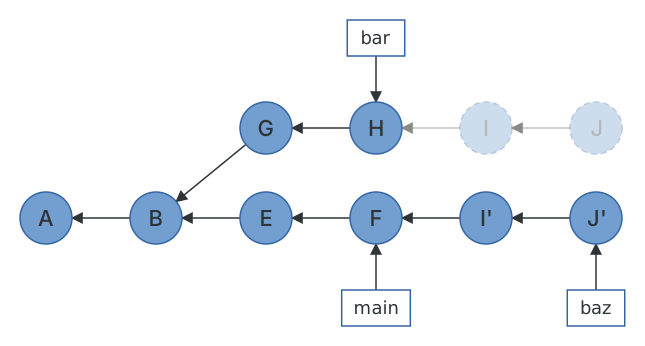
--onto is also the tool for the "I branched from the wrong branch" problem, and for deleting a range of commits from the middle of a branch (git rebase --onto A B drops everything between A and B).
Rebasing a stack of branches
The mirror image of that problem is when you want everything to move together. Stacked branches (a chain of small pull requests, each building on the last) are increasingly common, and they have an annoying property: when main moves, rebasing the top of the stack leaves the branches beneath it pointing at the old commits.
$ git log --oneline --graph main part-1 part-2* eec7c29 O| * 4a47f97 N| * 1f26084 M| * 410996a L| * b2eaa5d K|/* 3b2d27e D
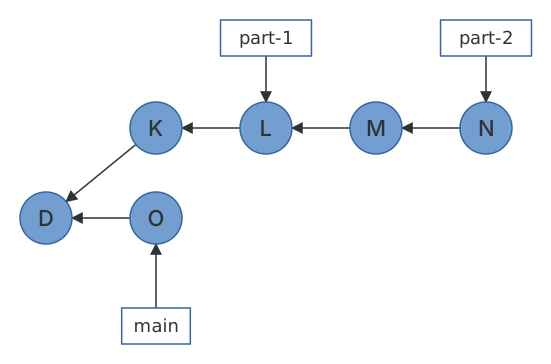
Here part-1 points at L and part-2 points at N. Git 2.38 added --update-refs, which notices any branches that point at commits being rebased and moves them to the corresponding copies.
$ git rebase --update-refs main part-2Successfully rebased and updated refs/heads/part-2.Updated the following refs with --update-refs:refs/heads/part-1$ git log --oneline --graph main part-1 part-2* d08ddfc N* ec52367 M* 2745d7b L* f4ffc17 K* eec7c29 O* 3b2d27e D
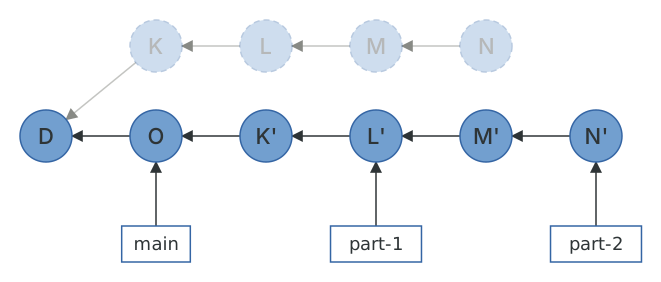
Both branches have moved. If you work with stacks all the time, rebase.updateRefs = true makes this the default.
Interactive rebasing
So far we've used rebase to move commits. Its other job is to edit them, and the tool for that is interactive rebase. git rebase -i <base> opens an editor containing a "todo list" with one line per commit, and you tell Git what to do with each one: pick keeps it, reword changes its message, edit stops so you can amend it, squash and fixup fold it into the previous commit, drop deletes it, and reordering lines reorders the commits.
A workflow I use every day is fixup commits. Suppose I've made two commits, and then notice a typo in the first one.
$ git log --oneline main..wip8eeb269 Add farewellc307b84 Add greeting
Rather than amending (which would only work if the typo was in the latest commit), I fix it and commit with --fixup, which creates a commit whose message says which commit it belongs to.
$ git commit --fixup HEAD~1[wip a778da9] fixup! Add greeting1 file changed, 1 insertion(+), 1 deletion(-)$ git log --oneline main..wipa778da9 fixup! Add greeting8eeb269 Add farewellc307b84 Add greeting
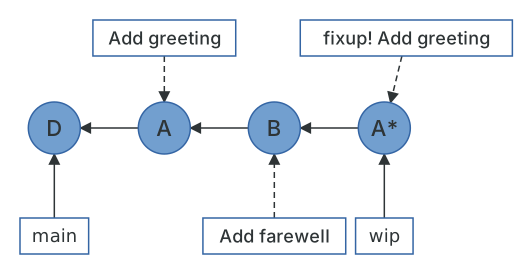
Then git rebase -i --autosquash arranges the todo list for me. I've set the editor to cat here so you can see the list Git generates without an editor opening.
$ GIT_SEQUENCE_EDITOR=cat git rebase -i --autosquash mainpick c307b84 # Add greetingfixup a778da9 # fixup! Add greetingpick 8eeb269 # Add farewellSuccessfully rebased and updated refs/heads/wip.$ git log --oneline main..wip7a248e1 Add farewelld0d4aaf Add greeting
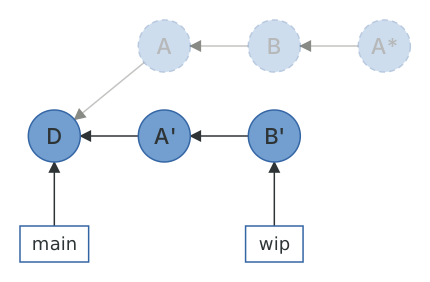
The fixup has been moved next to the commit it fixes and folded into it. Two clean commits, and no evidence of the typo. Setting rebase.autoSquash = true lets you drop the flag, and since Git 2.44 it works for non-interactive rebases too.
Every one of these operations is, underneath, a cherry-pick. squash cherry-picks a commit and then amends the previous one with its tree; reword cherry-picks and then changes the message; reordering just changes the order of the cherry-picks. There is nothing an interactive rebase can do that you couldn't do with the commands from the previous chapters. It's just far more convenient.
Undoing a rebase
Because a rebase creates new commits and leaves the old ones in place, undoing one is easy: point the branch back at the old tip. Git leaves that in ORIG_HEAD for you, and the reflog has it too.
$ git reflog -n 57a248e1 HEAD@{0}: rebase (finish): returning to refs/heads/wip7a248e1 HEAD@{1}: rebase (pick): Add farewelld0d4aaf HEAD@{2}: rebase (fixup): Add greetingc307b84 HEAD@{3}: rebase (start): checkout maina778da9 HEAD@{4}: commit: fixup! Add greeting$ git rev-parse --short ORIG_HEADa778da9
git reset --hard ORIG_HEAD (or git reset --hard wip@{1}) would put everything back the way it was. This is worth remembering the next time somebody tells you rebase "rewrites history". It doesn't rewrite anything. It writes new history, and keeps the old history around for a couple of weeks in case you want it back (see Packfiles and garbage collection for exactly how long).
Conflicts during a rebase
Since each step of a rebase is a cherry-pick, and a cherry-pick is a three-way merge, a rebase can hit a conflict. When it does, it stops at the commit that conflicted.
$ git rebase main conflictingAuto-merging shared.txtCONFLICT (add/add): Merge conflict in shared.txterror: could not apply 1467d5f... Add shared filehint: Resolve all conflicts manually, mark them as resolved withhint: "git add/rm <conflicted_files>", then run "git rebase --continue".hint: You can instead skip this commit: run "git rebase --skip".hint: To abort and get back to the state before "git rebase", run "git rebase --abort".Could not apply 1467d5f... # Add shared file
Git's hint covers all three options. git status tells you where in the rebase you are, which is useful when it's the fourth conflict out of a dozen commits.
$ git statusinteractive rebase in progress; onto 05af0a2Last command done (1 command done):pick 1467d5f # Add shared fileNo commands remaining.You are currently rebasing branch 'conflicting' on '05af0a2'.(fix conflicts and then run "git rebase --continue")(use "git rebase --skip" to skip this patch)(use "git rebase --abort" to check out the original branch)Unmerged paths:(use "git restore --staged <file>..." to unstage)(use "git add <file>..." to mark resolution)both added: shared.txt
Resolving works exactly as it did for a merge: edit the file, add it, continue.
$ vim shared.txt$ git add shared.txt$ git rebase --continue[detached HEAD ef49a14] Add shared fileSuccessfully rebased and updated refs/heads/conflicting.
One thing to be aware of: during a rebase, "ours" and "theirs" are backwards from what you might expect. Git is sitting on the base branch cherry-picking your commits onto it, so HEAD (ours) is the base and the commit being replayed (theirs) is yours. This trips up everybody at least once.
If you're resolving the same conflict repeatedly (which happens when you rebase a long-lived branch more than once), turn on rerere.enabled. Git will record how you resolved each conflict and replay the resolution automatically next time.
We've now covered everything that happens inside a single repository. It's time to look at how repositories talk to each other.