
Branches
Git's branches are often touted as being one of its strongest features. This is because branches in Git are very lightweight, compared to other version control systems where a branch is usually a clone of the entire repository.
The reason branches are so lightweight in Git is because they're just references. We saw in References that the main branch was simply a file inside .git/refs/heads. Let's create another branch to see what happens under the hood.
$ git branch test-branch$ cat .git/refs/heads/test-branch39f6ea2439eb1fd9f7837a223866f243b70125c0
It's as simple as that. Git has created a new entry in .git/refs/heads and pointed it at the current commit. Creating a branch doesn't copy anything, doesn't touch your working tree, and takes about as long as writing 41 bytes to disk.
We also saw in References that HEAD is Git's reference to the current branch. Let's see that in action by switching to our newly-created branch.
$ cat .git/HEADref: refs/heads/main$ git switch test-branchSwitched to branch 'test-branch'$ cat .git/HEADref: refs/heads/test-branch$ git branch --show-currenttest-branch
Switching branches is really two things: updating HEAD to point at the new branch, and then updating the index and working tree to match the tree of the commit that branch points to. Since both branches point at the same commit right now, the second part was a no-op.
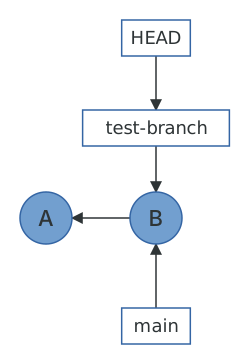
When you create a new commit, Git simply changes the current branch to point to the newly-created commit object.
$ echo 'Some more information here.' >> README$ git add README$ git commit -m "Update README in a new branch"[test-branch 5c9d5db] Update README in a new branch1 file changed, 1 insertion(+)$ cat .git/refs/heads/test-branch5c9d5dbae77c6721433071cf763d8ab26483cb99
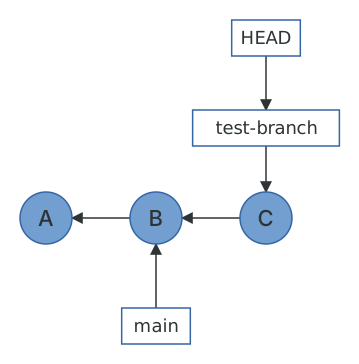
main still points at 39f6ea2. Nothing about a branch says "these commits belong to me"; a branch is a pointer to a single commit, and "the commits on a branch" just means every commit reachable from that pointer by following parent links. The same commit can be on many branches at once, and moving a branch pointer is all it takes to change which commits are "on" it. This is the single most useful thing to understand about Git, and nearly everything in the Merging and Rebasing chapters follows from it.
Managing branches
git branch on its own lists your local branches, with an asterisk next to the current one. Renaming a branch is just renaming the ref.
$ git switch mainSwitched to branch 'main'$ git branch* maintest-branch$ git branch -m test-branch readme-updates$ git branch* mainreadme-updates
Deleting a branch deletes the ref, and Git will refuse if the branch has commits that aren't reachable from the current branch, because deleting the ref would make those commits unreachable.
$ git branch -d readme-updateserror: the branch 'readme-updates' is not fully mergedhint: If you are sure you want to delete it, run 'git branch -D readme-updates'hint: Disable this message with "git config set advice.forceDeleteBranch false"$ git branch -D readme-updatesDeleted branch readme-updates (was 5c9d5db).
Notice that Git tells you what the branch pointed to as it deletes it. That's not just politeness. The commit 5c9d5db still exists in the repository; only the ref is gone. If you deleted the wrong branch, git branch readme-updates 5c9d5db puts it right back, and if you've already lost the hash, Recovering lost commits will show you how to find it.
git switch versus git checkout
If you learned Git before 2019, you'll have used git checkout for all of this. git checkout still works, but it does two unrelated jobs (switching branches and restoring files) with the same command, and the combination is responsible for an entire genre of accidents: git checkout foo switches to the foo branch if one exists, and silently discards your changes to the foo file if it doesn't. git switch only switches branches, git restore only restores files, and this guide uses them throughout. The old commands map directly:
git checkout branchisgit switch branch.git checkout -b branchisgit switch -c branch.git checkout hashisgit switch --detach hash.git checkout -- fileisgit restore file.git checkout HEAD -- fileisgit restore --source=HEAD file.
Later on we'll look at the difference between local branches and remote-tracking branches. Before that, let's look at Git's other kind of reference.