
Recovering lost commits
With a solid understanding of Git's inner workings, the tools for undoing mistakes stop looking like magic. There are two of them, and they cover almost every "I've lost my work" situation that doesn't involve rm -rf .git.
The reflog
Whenever you make a change in Git that affects the tip of a branch, Git records information about that change in what's called the reflog. Usually you shouldn't need to look at these logs, but sometimes they can come in very handy.
Let's say you have a repository with a few commits.
$ git log --oneline6ad1707 Add empty LICENSE filee243e33 Add some actual content to readmedc95ef8 Add TODO note to readme479a2f3 Add empty readme
You decide, for some reason, to perform a destructive action on your main branch.
$ git reset --hard HEAD~2HEAD is now at dc95ef8 Add TODO note to readme
Since performing this action, you've realised that you lost some commits and you have no idea what their hashes were. You never pushed the changes; they were only in your local repository. git log is no help, since the commits are no longer reachable from HEAD.
$ git log --onelinedc95ef8 Add TODO note to readme479a2f3 Add empty readme
This is where git reflog can be useful.
$ git reflogdc95ef8 HEAD@{0}: reset: moving to HEAD~26ad1707 HEAD@{1}: commit: Add empty LICENSE filee243e33 HEAD@{2}: commit: Add some actual content to readmedc95ef8 HEAD@{3}: commit: Add TODO note to readme479a2f3 HEAD@{4}: commit (initial): Add empty readme
The reflog shows a list of all changes to HEAD in reverse chronological order. The hash in the first column is the value of HEAD after the action on the right was performed. We can see, therefore, that we were at commit 6ad1707 before the destructive change, and HEAD@{1} is a name for exactly that.
$ git reset --hard 'HEAD@{1}'HEAD is now at 6ad1707 Add empty LICENSE file$ git log --oneline6ad1707 Add empty LICENSE filee243e33 Add some actual content to readmedc95ef8 Add TODO note to readme479a2f3 Add empty readme
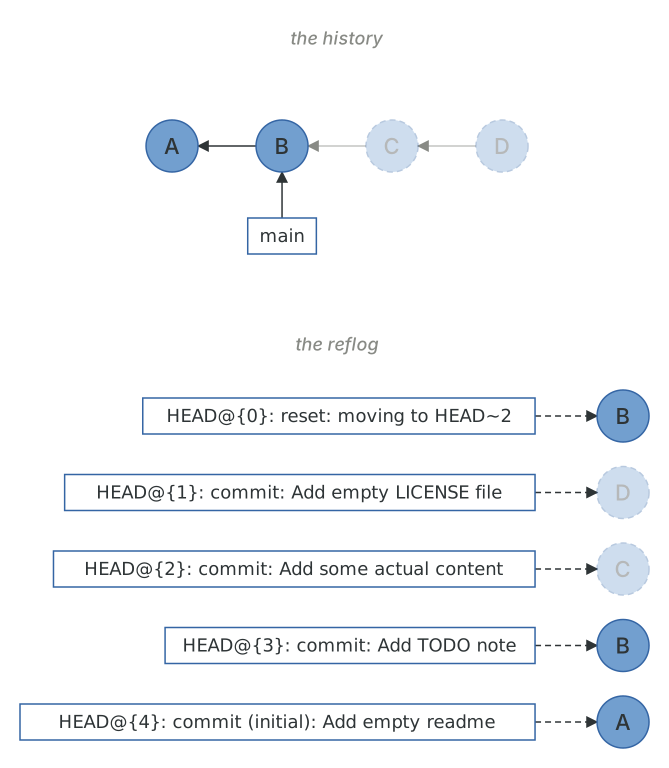
How you want to recover commits depends on the situation. In this particular example, a reset --hard restored HEAD to its original position. If we had introduced new commits since the destructive change, we might instead cherry-pick the commits that were lost, or create a branch at the old tip with git branch recovered HEAD@{1} and sort it out from there.
Every branch has its own reflog too, which is what makes main@{1} work. git reflog show <branch> lists it, and it's often easier to read than the reflog for HEAD because it isn't cluttered with branch switches.
$ git reflog show main6ad1707 main@{0}: reset: moving to HEAD@{1}dc95ef8 main@{1}: reset: moving to HEAD~26ad1707 main@{2}: commit: Add empty LICENSE filee243e33 main@{3}: commit: Add some actual content to readmedc95ef8 main@{4}: commit: Add TODO note to readme479a2f3 main@{5}: commit (initial): Add empty readme
Note that Git's reflog is only a record of changes for your local repository. It lives in .git/logs, it isn't pushed or fetched, and a fresh clone starts with an empty one. If your local repository becomes corrupt or is deleted, the reflog won't be of any use. Entries also expire: by default, Git keeps reflog entries for unreachable commits for 30 days, and everything else for 90 (see Packfiles and garbage collection).
Depending on the situation, you may find git fsck more suitable for recovering lost commits.
fsck
In a way, Git's object storage works like a primitive file system: objects are like files on a hard drive, and their hashes are the objects' physical address on the disk. References are like the directory entries that give those addresses names. By this analogy, git fsck is aptly named after fsck ("file system check"). This tool is able to check Git's database and verify the validity and reachability of every object that it finds.
When a reference (like a branch) is deleted, the objects it referred to usually aren't deleted, even if they are no longer reachable from any other reference. Using a simple example, we can see this in practice. Here we have a branch, feature-branch, with one commit that isn't on main. If we delete feature-branch, the commit will no longer be reachable.
$ git switch -c feature-branchSwitched to a new branch 'feature-branch'$ echo 'A feature' > feature.txt$ git add feature.txt$ git commit -m "Add a feature"[feature-branch 0f6efe8] Add a feature1 file changed, 1 insertion(+)create mode 100644 feature.txt$ git switch mainSwitched to branch 'main'$ git branch -D feature-branchDeleted branch feature-branch (was 0f6efe8).
At this point, commit 0f6efe8 still exists in our repository, but there are no references pointing to it. By searching through the database, git fsck is able to find it.
$ git fsck --lost-founddangling commit 0f6efe89236a7af4cb61b1cc071ae90dbc6b00d5$ git show --oneline -s 0f6efe80f6efe8 Add a feature$ git branch feature-branch 0f6efe8$ git log --oneline feature-branch0f6efe8 Add a feature6ad1707 Add empty LICENSE filee243e33 Add some actual content to readmedc95ef8 Add TODO note to readme479a2f3 Add empty readme
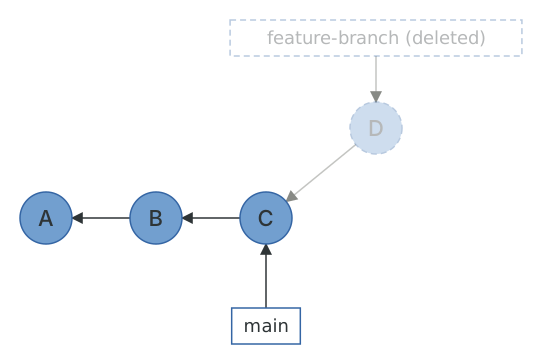
A "dangling" commit is one that nothing points to. Since the commit still points at its parents, recreating the branch brings back the whole history in one step.
For simple cases, git reflog may be preferred, since it tells you what happened rather than just what's lying around. Where git fsck excels over git reflog is when you need to find objects which you never referenced in your local repository (and therefore would not be in your reflog). An example of this is when you delete a remote branch through an interface like GitHub. Assuming the objects haven't been garbage-collected, you can clone the remote repository and use git fsck to recover the deleted branch. It's also the tool for a dropped stash whose hash you didn't write down, and, as we saw in The index, for content that was git added but never committed: fsck reports those as dangling blobs, and git cat-file -p will show you what's in them.
Both of these tools depend on the same fact: Git doesn't delete objects when they become unreachable. The next chapter looks at when it does.