
References
In previous chapters, we saw how objects in Git are identified by a hash. Since we want to manipulate objects quite often in Git, it's important to know their hashes. You could run all your Git commands referencing each object's hash, like git show 39f6ea2, but that would require you to remember the hash of every object you want to manipulate.
To save you from having to memorise these hashes, Git has references, or "refs". A reference is simply a file stored somewhere in .git/refs, containing the hash of a commit object.
To carry on the example from Commits, let's figure out the hash of "First commit" using references only.
$ git statusOn branch mainnothing to commit, working tree clean
git status has told us that we are on branch main. As we will learn in the next chapter, branches are just references. We can see this by looking in .git/refs/heads.
$ ls -l .git/refs/heads/total 8-rw-r--r-- 1 demo demo 41 Sep 29 00:23 main$ cat .git/refs/heads/main39f6ea2439eb1fd9f7837a223866f243b70125c0
Sure enough, main contains the hash of the "First commit" object. (Forty hex characters plus a newline is forty-one bytes, which is why every ref file is the same size.)
Of course, it's possible to simplify this process. Git can tell us which commit a reference is pointing to with the show and rev-parse commands.
$ git show --oneline -s main39f6ea2 First commit$ git rev-parse main39f6ea2439eb1fd9f7837a223866f243b70125c0
HEAD
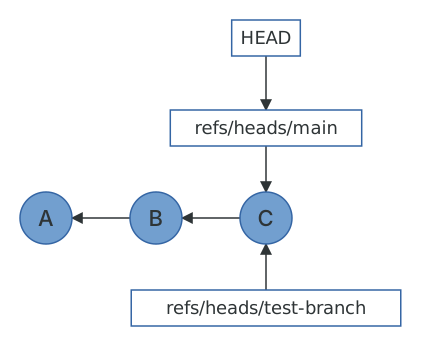
Git also has a special reference, HEAD. This is a "symbolic" reference which points to the tip of the current branch rather than an actual commit. If we inspect HEAD, we see that it simply points to refs/heads/main.
$ cat .git/HEADref: refs/heads/main$ git symbolic-ref HEADrefs/heads/main$ git rev-parse HEAD39f6ea2439eb1fd9f7837a223866f243b70125c0
It is actually possible for HEAD to point directly to a commit object. When this happens, Git will tell you that you are in a "detached HEAD state". Really all this means is that you're not currently on a branch. git switch --detach will do it deliberately, and checking out a tag or a commit hash will do it as a side effect.
$ git switch --detachHEAD is now at 39f6ea2 First commit$ cat .git/HEAD39f6ea2439eb1fd9f7837a223866f243b70125c0
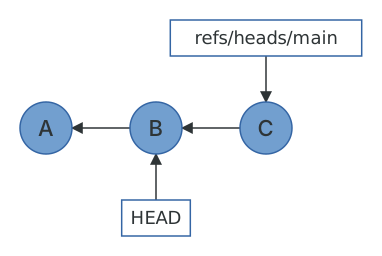
There's nothing wrong with a detached HEAD, and it's a perfectly good way to poke around an old commit. The only danger is that if you make commits while detached, no branch will point to them, and once you switch away they'll be reachable only through the reflog (see Recovering lost commits). If you find yourself wanting to keep them, git switch -c new-branch will create a branch right where you are.
$ git switch mainSwitched to branch 'main'
Packed refs
I said a reference is a file in .git/refs, and that's true right up until Git decides to tidy up. Storing every ref as its own file is simple but slow when a repository has thousands of tags and branches, so Git periodically packs refs into a single file. You can trigger this yourself with git pack-refs.
$ git pack-refs --all$ ls -l .git/refs/heads/total 0$ cat .git/packed-refs# pack-refs with: peeled fully-peeled sorted39f6ea2439eb1fd9f7837a223866f243b70125c0 refs/heads/main$ git rev-parse main39f6ea2439eb1fd9f7837a223866f243b70125c0
main still works, but the file has gone. When Git looks up a ref it checks .git/refs first and falls back to packed-refs, and when a packed ref is updated the new value is written as a loose file again, shadowing the packed one. This is worth knowing because it's the most common reason for "I looked in .git/refs and the branch wasn't there". git fetch and git gc both pack refs, so any clone that's been around for a while will have a packed-refs file.
If you want the truth about your refs, don't read the directory. Ask Git.
$ git for-each-ref39f6ea2439eb1fd9f7837a223866f243b70125c0 commit refs/heads/main
Reftable
Git 2.45 introduced a second way of storing references entirely, called reftable, in which refs live in binary tables under .git/reftable instead of as files. It's faster for repositories with enormous numbers of refs and makes ref updates atomic. It isn't the default, but you may run into it, and .git/refs will very politely tell you so.
$ git init --ref-format=reftable reftable-repositoryInitialized empty Git repository in /home/demo/reftable-repository/.git/$ ls reftable-repository/.git/refs reftable-repository/.git/reftablereftable-repository/.git/refs:headsreftable-repository/.git/reftable:0x000000000001-0x000000000001-3c8576d9.reftables.list$ cat reftable-repository/.git/refs/headsthis repository uses the reftable format
The commands are exactly the same. Only the on-disk format differs, which is a good illustration of why this guide keeps pointing you at rev-parse and for-each-ref instead of cat.
Revision syntax
References are the starting point for Git's revision syntax, which lets you name a commit relative to another one. This shows up in almost every chapter from here on, so let's take a moment to go through it with a repository that has a merge in it.
$ git log --oneline --graph* 6fc6294 Merge branch 'topic'|\| * 5654e18 E* | 315376d D|/* 6eb277d C* 39f32f1 B* 4c4892b A
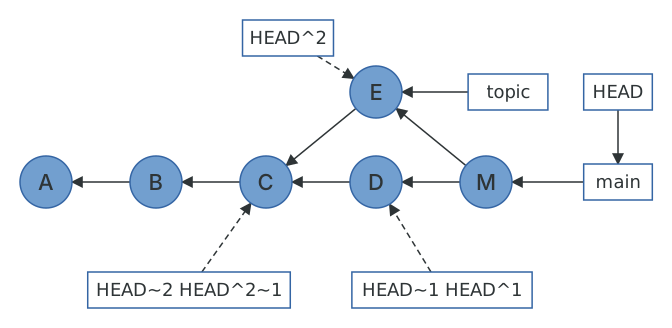
A tilde walks back through first parents. HEAD~1 is the parent of HEAD, HEAD~2 is the grandparent, and so on.
$ git show -s --oneline HEAD~1315376d D$ git show -s --oneline HEAD~26eb277d C
A caret selects which parent. HEAD^1 is the first parent (the branch you were on when you merged), and HEAD^2 is the second parent (the branch you merged in). For a commit with one parent, HEAD^ and HEAD~ are the same thing, which is why people use them interchangeably right up until they hit a merge commit.
$ git show -s --oneline HEAD^1315376d D$ git show -s --oneline HEAD^25654e18 E$ git show -s --oneline HEAD^2~16eb277d C
Two dots give you a range: everything reachable from the right side that isn't reachable from the left. This is how you ask "what's on this branch that isn't on that one?".
$ git log --oneline HEAD~2..HEAD6fc6294 Merge branch 'topic'5654e18 E315376d D
A colon after a revision reaches into the tree of that commit, so you can look at a file as it was at any point in history without checking anything out.
$ git show main:file.txtD
And finally, @{n} looks up the reflog: main@{1} is where main pointed one update ago. We'll make heavy use of this in Recovering lost commits.
$ git rev-parse --short 'main@{1}'315376d
There is more (:/text finds the newest commit whose message matches, @{upstream} names a branch's remote-tracking branch, and git help revisions lists the rest), but these five will cover almost everything you'll ever need to type.